
How to add a signature in Gmail
Gmail keeps its full signature editor on the desktop settings page. The mobile apps can either use that desktop signature or replace it with a separate text signature. These steps cover both paths, including the defaults that determine whether the signature actually appears.
- Desktop, Android, iPhone and iPad
- Multiple signatures
- Current Google menus
Add a Gmail signature on a computer
Build the formatted version on a computer. Gmail’s browser settings support text, links and images, and let you choose separate defaults for new messages and replies.
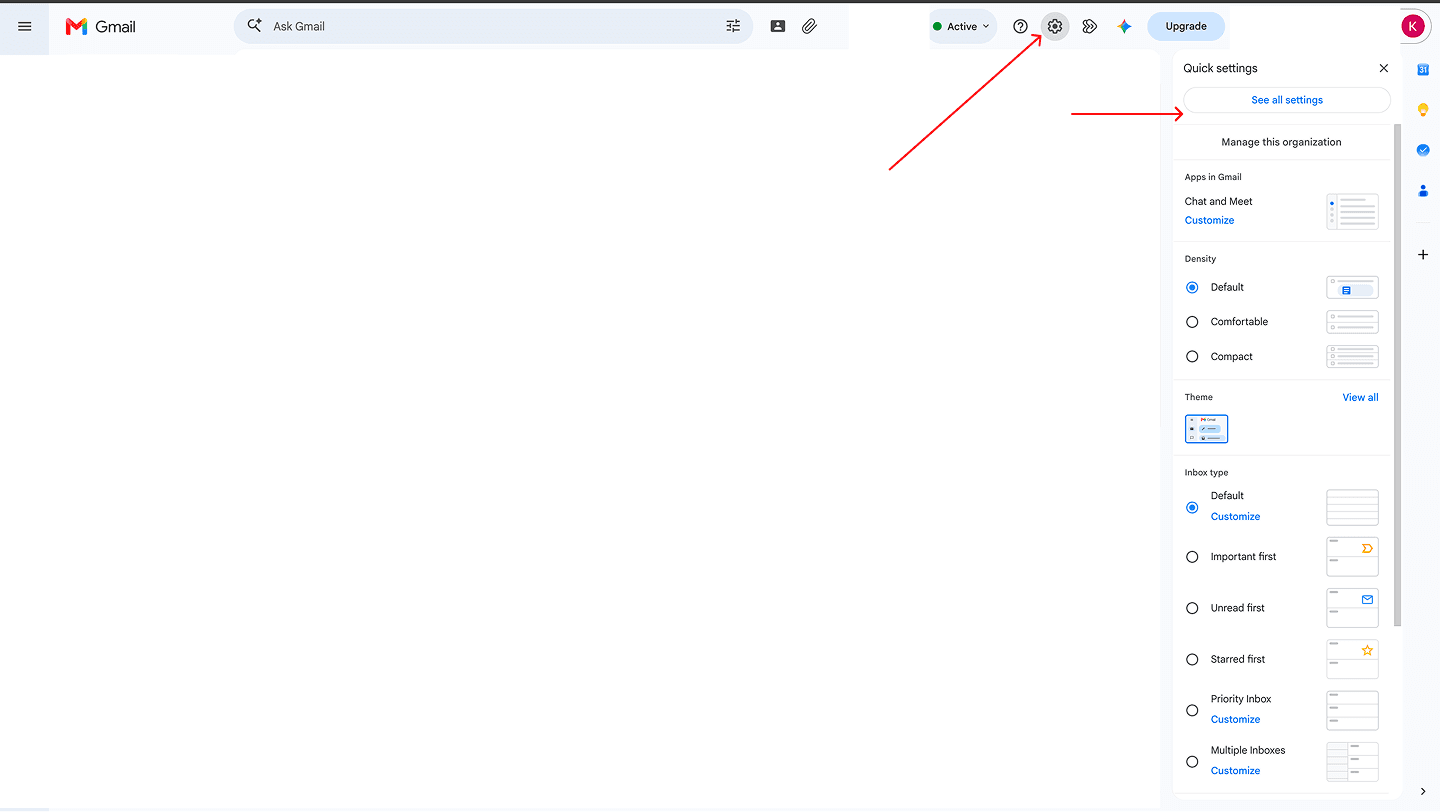
- 1Open Gmail, select the gear icon, then See all settings.
- 2Stay on the General tab and scroll to Signature.
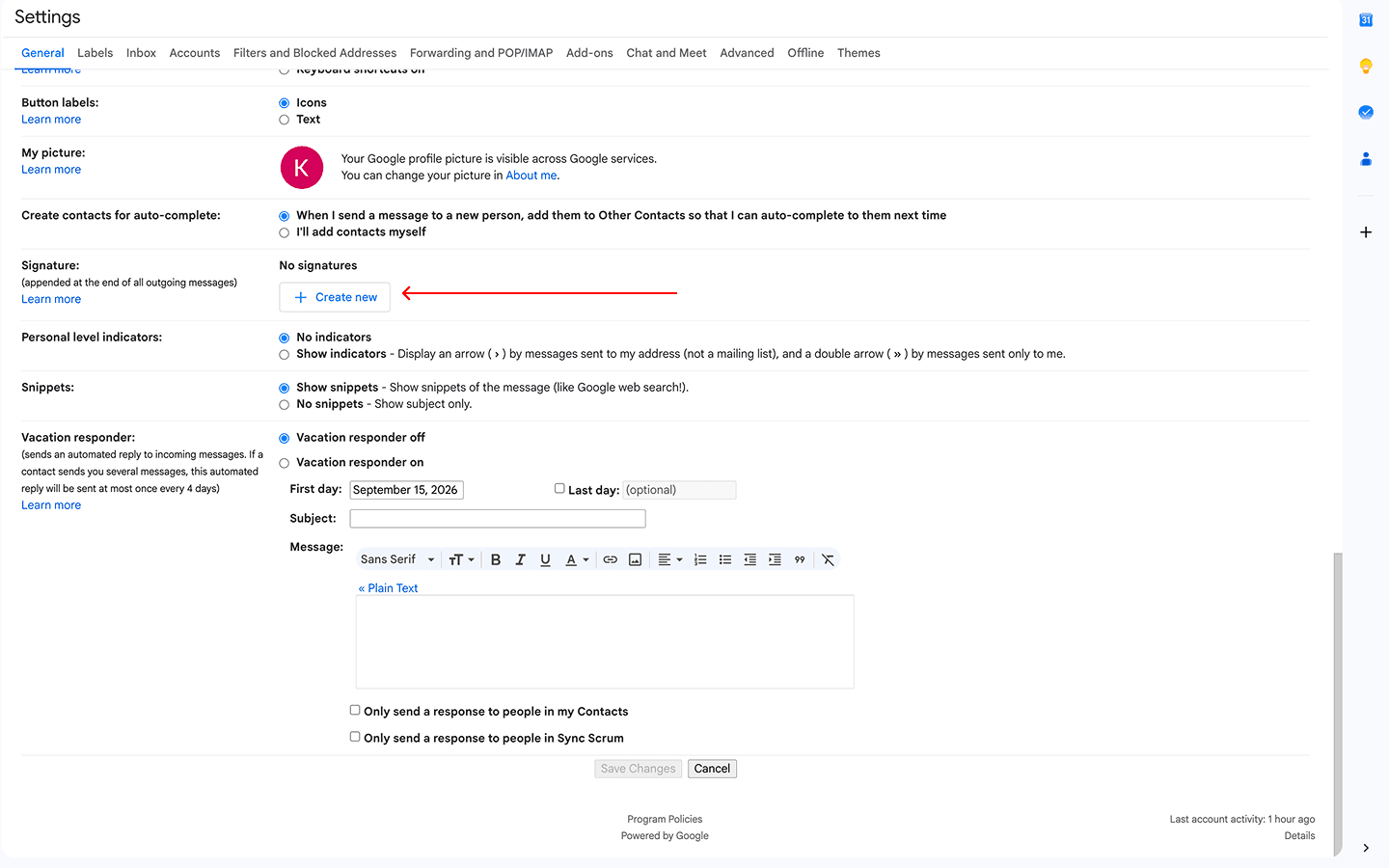
- 3Choose Create new and give the signature a name. That name is only visible to you.
- 4Click the editor and paste the signature with Ctrl + V on Windows or ⌘ + V on Mac.
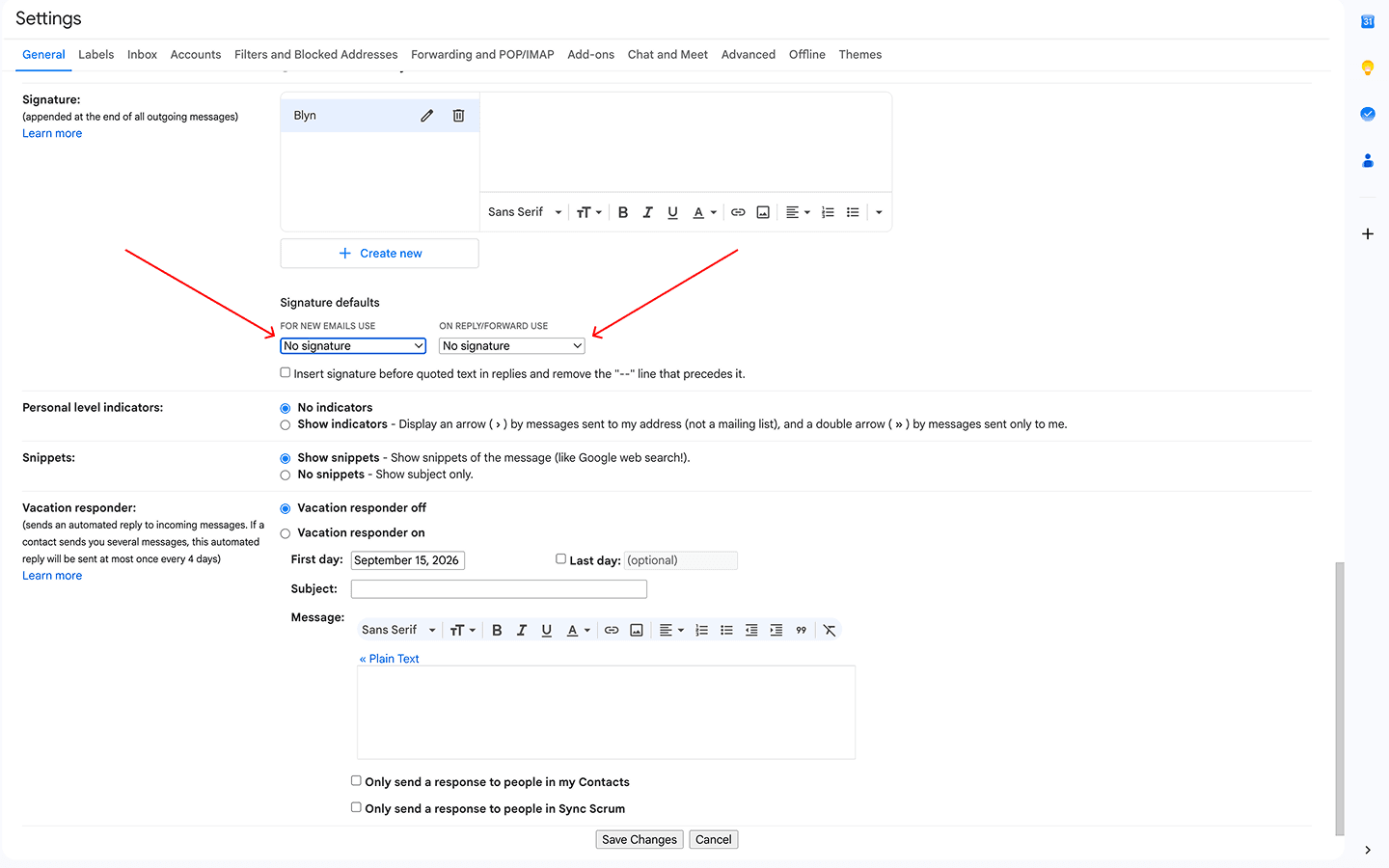
- 5Under Signature defaults, select it for new emails and, separately, for replies and forwards.
- 6Scroll to the bottom of the page and choose Save Changes.
Need the signature before you install it?
Build it in your browser, preview it as Gmail will display it, then copy it formatted. Free and no signup.
Create my Gmail signatureUse more than one Gmail signature
Gmail can keep several signatures. Create each one in the same Signature section, then use the pen icon in a compose window when you want to switch for one message. The default dropdowns decide which one is added automatically.
Different signatures for different sending addresses
If you use Gmail’s Send mail as feature, select the sending address from the dropdown above the signature editor before creating or editing its signature. If the dropdown is missing, check that the address exists under Accounts and Import.
Gmail signatures on Android, iPhone and iPad
A mobile signature belongs to the Gmail app and the selected Google Account. If you leave it disabled, new messages can use the signature configured on your computer. Enable it only when you want a separate, simpler signature for messages sent from the app.
Android
Open Menu, Settings, choose the Google Account, then select Mobile signature. Enter the text and tap OK.
iPhone and iPad
Open Menu, Settings, then Signature settings under Compose and Reply. Turn on Mobile Signature, edit it, then go back to save.
Why a Gmail signature is missing or looks wrong
- It never appears automatically
- Choose the signature in both default dropdowns. Creating it does not make it the default.
- It appears on new emails but not replies
- New messages and replies or forwards have separate defaults. Set the second dropdown too.
- The wrong address gets the signature
- Select the correct Send mail as address above the editor and configure its own signature.
- An image is missing
- Use a publicly accessible HTTPS image and keep it reasonably small. Gmail counts images toward its signature size limit.
- Pasting removes the design
- Paste normally with Ctrl + V or ⌘ + V. A paste-without-formatting command strips the layout and links.
Menu paths and mobile behavior were checked against Google’s official Gmail Help documentation on September 15, 2026.
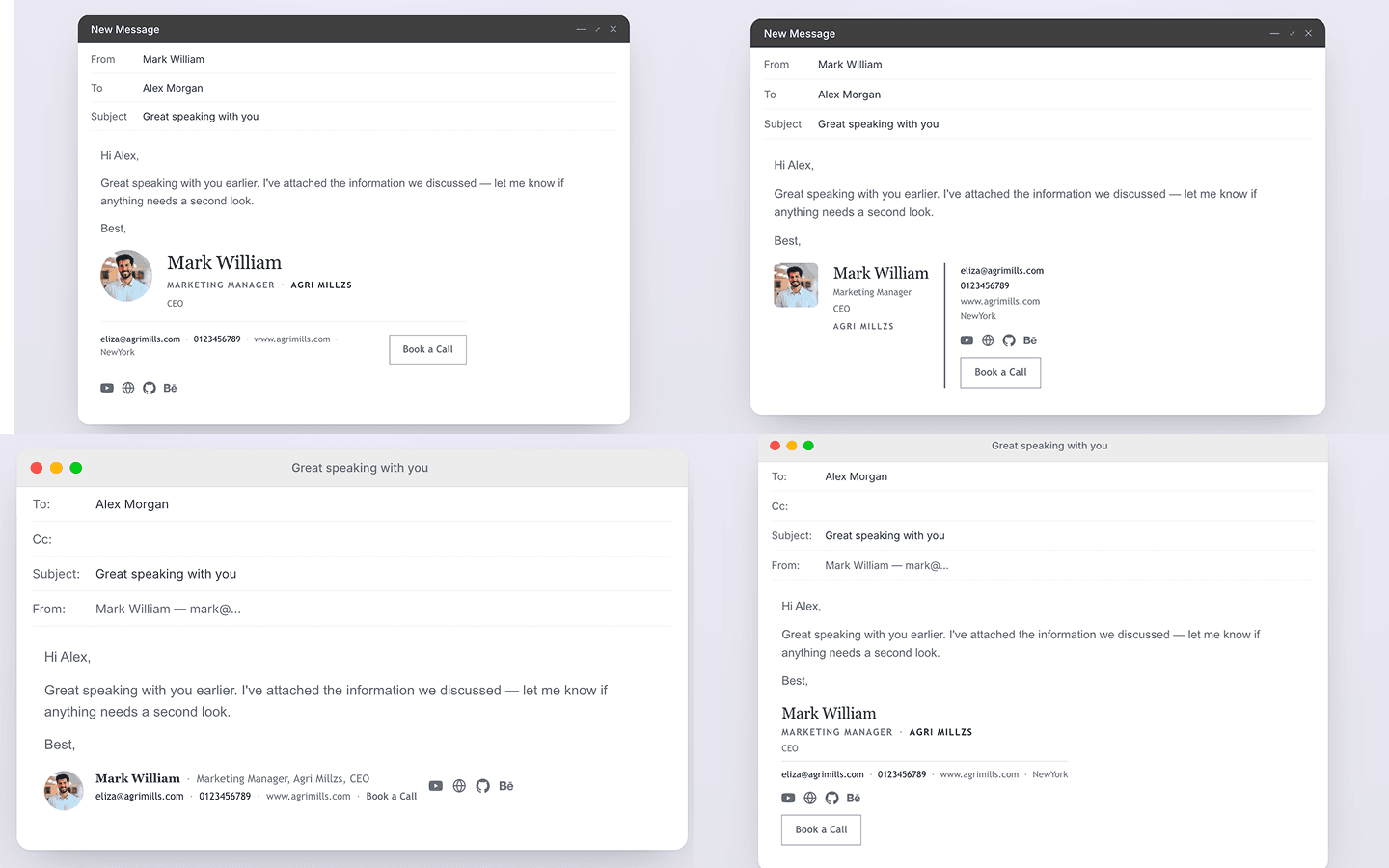
How a Blyn signature looks in an email
Send a test message after installing it. Check the result on desktop and mobile, with images enabled and disabled, so your name and contact details still make sense in every view.

FAQ
Gmail signature questions
The settings and problems people most often miss.
On a computer, open Gmail and go to Settings, See all settings, General, then Signature. Choose Create new, paste or type your signature, choose defaults for new messages and replies, then select Save Changes at the bottom.
The signature may exist without being selected as a default. In Gmail's Signature defaults section, choose it separately for new emails and for replies and forwards. Also check that the correct sending address is selected if you use Send mail as.
Yes. If the additional addresses are configured under Send mail as, use the address dropdown above Gmail's signature editor to create and assign a signature to each one.
If you do not create a mobile signature in the Gmail app, new messages can use the signature configured on your computer. Once you enable a mobile signature, the app uses that separate, simpler signature for messages sent from the app.
Yes. You can build and copy a signature without signing up or entering a card. The generator runs in your browser and does not send the contact details you type to Blyn.